
Last Updated: April 23, 2026 |
Status: SEO & Tech Verified
IPTV Smarters Pro: Complete Setup & Review Guide (2026)
If you have spent any time in the streaming world, you have likely heard of IPTV Smarters Pro. It has solidified its position as one of the most versatile and user-friendly video streaming players available in 2026. Whether you are moving away from traditional cable or looking for a more organized way to manage your digital content, this app is often the first recommendation for beginners and experts alike.
However, simply downloading the app is only half the battle. To truly unlock its potential, you need to understand how to configure it correctly with your provider’s credentials. In this exhaustive guide, we will provide a deep-dive review of IPTV Smarters Pro, covering everything from its high-end features to step-by-step installation instructions for every major device.
Table of Contents
What is IPTV Smarters Pro?
IPTV Smarters Pro is a powerful video streaming player that allows end-users to stream content like Live TV, VOD, Series, and TV Catchup supplied by their service provider. It is important to note that the app itself is a “shell” or a player; it does not come with any pre-loaded content or playlists.
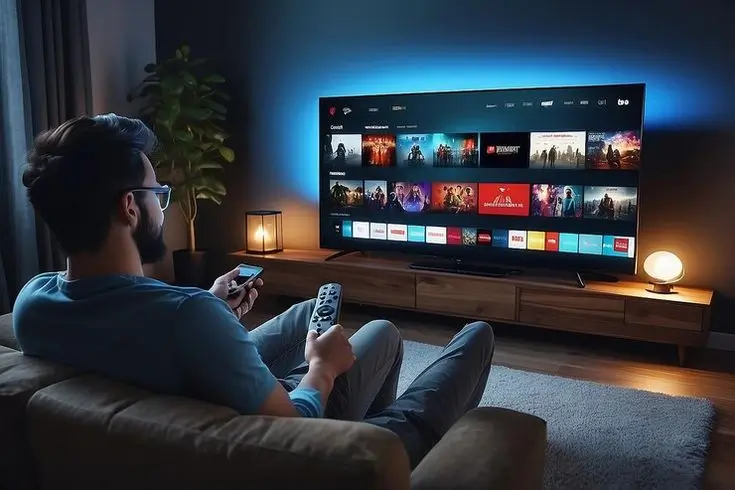
Think of it as a high-tech DVD player, while your provider gives you the “disc.” By using the Internet Protocol, as detailed on Wikipedia, the app organizes thousands of channels into a neat, Netflix-style interface. In 2026, it remains a dominant force in streaming media because of its ability to handle massive playlists without slowing down.

Key Features of IPTV Smarters Pro
Why do so many people choose IPTV Smarters Pro over other players? It comes down to the robust feature set that usually rivals paid hardware decoders.
- Multi-Screen Support: Watch up to four channels simultaneously on one screen—perfect for sports Saturdays.
- Master Search: A global search function that lets you find movies, series, or live channels instantly.
- Parental Control: Lock adult categories or specific channels with a pin code to keep the family safe.
- EPG (Electronic Program Guide) Support: A fully integrated TV guide that shows you what’s playing now and what’s coming up next.
- External Player Integration: If you prefer using VLC or MX Player, you can easily integrate them into the app.
Pros and Cons
No app is perfect. When evaluating IPTV Smarters Pro, it is essential to look at both sides of the coin.
The Pros
- Compatibility: It works on almost everything: Android, iOS, Windows, Mac, Firestick, and Smart TVs.
- Visual Appeal: The UI is modern, colorful, and very easy to navigate with a remote or touch screen.
- Speed: Channel zapping is remarkably fast, assuming your provider’s servers are high-quality.
The Cons
- Manual Setup: It requires some technical knowledge to enter URLs and credentials correctly.
- Ads in Free Version: The free version can sometimes display ads, which can be removed with the premium upgrade.
- Not in All Stores: Occasionally, the app is removed from the Google Play or Apple Store, requiring manual “sideloading.”
Step-by-Step Setup Guide
Setting up IPTV Smarters Pro is slightly different depending on your device. Follow these instructions to get up and running in minutes.

Install on Amazon Firestick
- Go to Settings > My Fire TV > Developer Options and enable Apps from Unknown Sources.
- Search for the Downloader app in the Amazon App Store and install it.
- Open Downloader and type in the direct URL for the IPTV Smarters Pro APK (usually provided by your service provider).
- Once downloaded, click Install and then Open.
Install on Android Phone or Box
- Open the Google Play Store and search for “Smarters Player Lite” or “IPTV Smarters Pro.”
- Click Install.
- If not available in the store, download the APK from the official website and install it manually.
Install on Samsung & LG Smart TV
- Go to the Samsung Apps Store or LG Content Store.
- Search for “IPTV Smarters Pro.”
- Install the app. (Note: If it’s not available, you may need to use a Firestick or an Android Box).
For a more detailed breakdown of other devices, you can always refer to our comprehensive IPTV setup guide.
Understanding Login Methods
Once the app is open, you will be prompted to “Add New User.” There are two primary ways to connect your IPTV Smarters Pro to your content.

Method 1: Xtream Codes API (Recommended)
This is the most stable method. Your provider will give you a Username, Password, and a Server URL.
- Select “Login with Xtream Codes API.”
- Enter any name in the first box (e.g., “My TV”).
- Carefully type in your Username and Password.
- Enter the Server URL (e.g., http://provider-url.com:8080).
- Click Add User.
Method 2: Load Your Playlist or File/URL (M3U)
If your provider gives you a long link starting with `http://…/get.php?m3u…`, use this option. Simply paste the URL into the app, and it will parse the channels for you. This method is slightly slower to load than Xtream Codes.
Tips for the Best Streaming Performance
To ensure your IPTV Smarters Pro experience is buffer-free, follow these expert tips:
- Use Ethernet: Wi-Fi is prone to interference. A hardwired connection is 10x more stable for 4K streaming.
- VPN is Key: Many ISPs throttle streaming traffic. A VPN hides your activity and can actually increase your speed.
- Hardware Acceleration: Go into the app settings and ensure “Hardware Decoding” is enabled. This uses your device’s chip to process the video, making it smoother.
- Choose the Right Sub: Your player is only as good as the source. Make sure you check our updated IPTV channel list to see the quality of streams we provide.
Troubleshooting Common Issues
Is IPTV Smarters Pro acting up? Here are the most common fixes:
- “Invalid Details”: Double-check your Username and Password. 99% of login issues are due to typos (extra spaces or wrong casing).
- Buffering: Check your internet speed. If your speed is fine, try changing the “Stream Format” in settings from .ts to .m3u8.
- App Crashing: Clear the app cache in your device settings or re-install the app entirely.
- EPG Not Loading: Go to settings > EPG Timeline > and click “Refresh EPG.”

Frequently Asked Questions (FAQ)
Is IPTV Smarters Pro free?
Yes, there is a free version available. However, there is a “Premium” version that unlocks features like Multi-Screen and removes ads.
Does the app come with channels?
No. IPTV Smarters Pro is just a player. You must have an active subscription from a provider to watch content.
Why can’t I find it on the Google Play Store?
Sometimes Google removes IPTV-related apps due to policy changes. If you can’t find it, you can safely download the APK from the official Smarters website.
Can I use it on my PC?
Yes! There are official versions of IPTV Smarters Pro for both Windows and macOS.
Conclusion
In the ever-changing landscape of 2026, IPTV Smarters Pro remains the gold standard for third-party streaming players. Its balance of power, design, and multi-device compatibility makes it an essential tool for anyone serious about digital entertainment.
By following this guide, you should have your IPTV Smarters Pro set up and running perfectly. Remember, the key to a great experience isn’t just the app, but the stability of the servers behind it.
Stop Buffering and Start Watching
Pair your IPTV Smarters Pro app with the world’s most stable servers today.